The allure of creating custom electronics is undeniable, and CircuitMaker stands as a powerful, free tool for PCB design. While primarily designed for Windows, the desire to run CircuitMaker on Mac is common among makers and engineers. This article dives deep into the feasibility of using CircuitMaker on Mac, presenting practical solutions and alternatives to empower your design projects on macOS. Let's explore how to bridge the gap between design aspirations and macOS reality.
CircuitMaker, a powerful PCB design software, is primarily developed for the Windows operating system. This design choice means that it does not offer native support for macOS, presenting a significant hurdle for Mac users seeking to utilize this software. The underlying architecture and libraries used in CircuitMaker are specific to the Windows environment, requiring alternative solutions for Mac users.
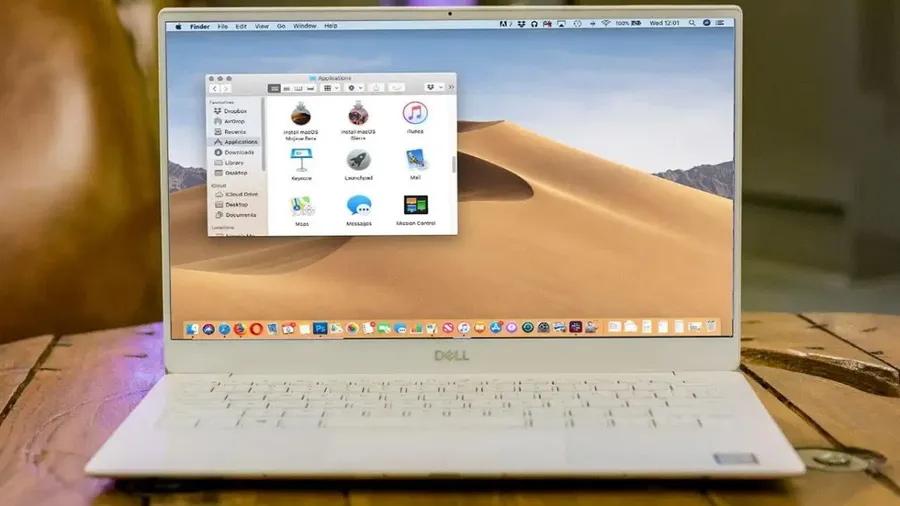
Virtualization offers a robust method for running Windows-based applications like CircuitMaker on macOS by creating an isolated Windows environment within your Mac. This approach leverages software such as Parallels Desktop or VMware Fusion to simulate a complete Windows operating system, enabling seamless execution of applications that are not natively supported on macOS.
The core concept involves setting up a virtual machine (VM), which acts as a software-based computer with its own allocated resources, such as CPU, RAM, and storage. Once Windows is installed within this VM, CircuitMaker can be installed and run just as it would on a physical Windows machine. This method allows Mac users to bypass the inherent limitations of macOS compatibility and use software that is exclusively developed for Windows.
| Feature | Parallels Desktop | VMware Fusion |
|---|---|---|
| Ease of Setup | User-friendly interface, streamlined setup process | Slightly more technical setup, but very customizable |
| Performance | Optimized for performance with good integration | Excellent performance, particularly for demanding applications |
| Integration | Seamless integration with macOS, including file sharing and copy/paste functionalities | Good integration with macOS, with similar features to Parallels |
| Cost | Paid software, typically a subscription | Paid software, typically a one time purchase with upgradation cost |
| Resource Usage | Relatively lightweight resource usage | Can be more resource intensive depending on the configuration |
Key requirements for virtualization include sufficient RAM, disk space, and a compatible processor. Generally, a minimum of 8GB of RAM and 20GB of free disk space is advised to ensure a smooth experience. Furthermore, both Parallels Desktop and VMware Fusion require a valid Windows license to activate the virtual machine.
While virtualization is a powerful solution, it's important to consider the inherent overhead of running a virtual operating system. This can lead to some performance reduction compared to running the software on a native Windows machine. The performance is influenced by the allocated resources to the virtual machine and the host machine's performance
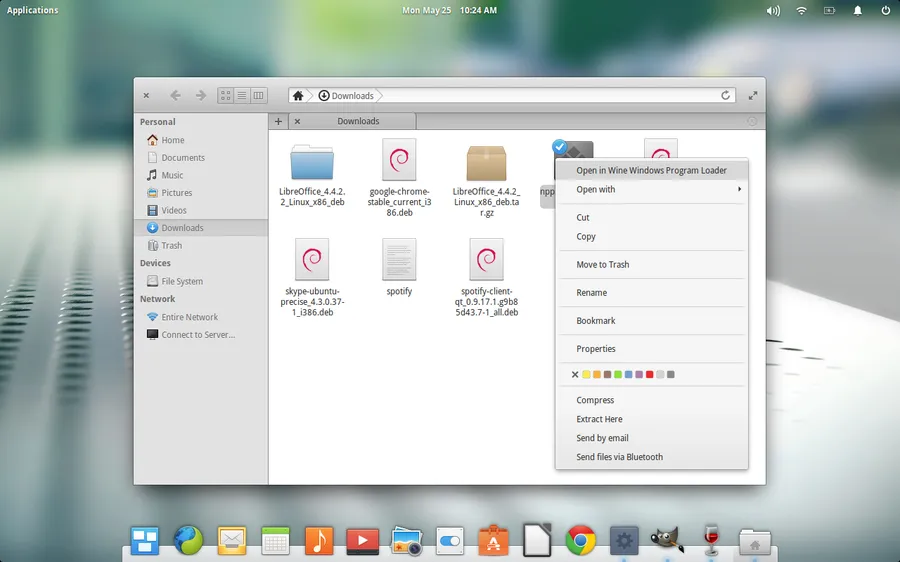
For technically inclined users, Wine and Winetricks present a method to run CircuitMaker on macOS without requiring a full Windows installation. This approach leverages Wine, a compatibility layer capable of running Windows applications on macOS, and Winetricks, a helper script that provides necessary libraries and components for specific applications. This bypasses the overhead of a complete virtual machine, potentially offering a more streamlined experience, albeit with some caveats.
Understanding the core components is key before diving into the setup. Wine translates Windows API calls into macOS-compatible instructions. This is not an emulator but rather an implementation of the Windows API, thus often achieving better performance than traditional emulation. Winetricks, on the other hand, provides an easy method to download and install various Windows DLLs and system components which are required by some Windows software to operate correctly. CircuitMaker, like many complex Windows applications, often requires such components.
While Wine and Winetricks present an intriguing alternative to virtualization, it's essential for users to weigh the technical complexity against potential performance gains and risks. This method is better suited for those with a strong technical background and who are comfortable with troubleshooting issues, as opposed to less tech-savvy users who may find virtualization a more straightforward route.
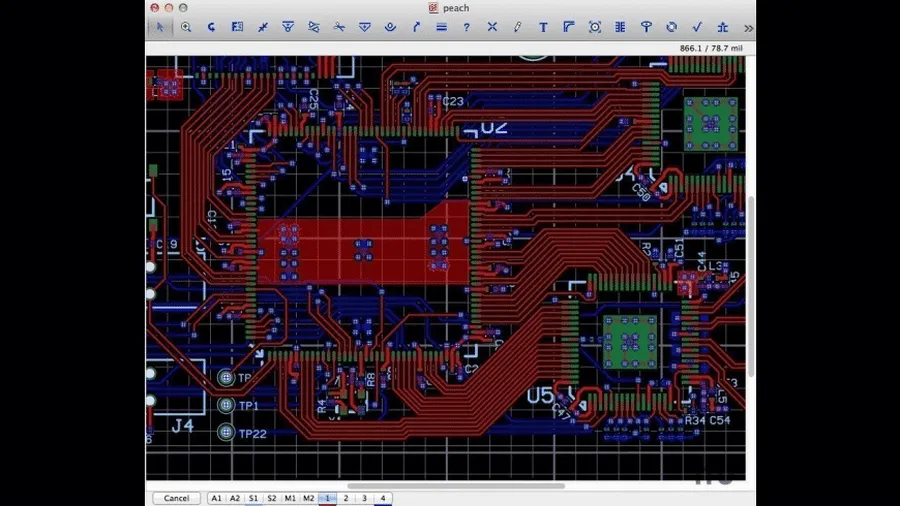
Given the absence of native CircuitMaker support for macOS, it's crucial to explore robust alternatives that offer comparable functionality. This section details several prominent PCB design software options compatible with macOS, providing a comprehensive overview to help users make informed decisions. We will focus on KiCad, Autodesk EAGLE, and Autodesk Fusion 360, each with their own strengths, weaknesses, and pricing models.
| Software | Pricing | Key Features | Ease of Use | Community Support |
|---|---|---|---|---|
| KiCad | Free and Open Source | Complete suite (schematic capture, PCB layout, 3D viewer), actively developed, cross-platform. | Moderate learning curve but improving, highly customizable. | Large and active community, extensive online resources. |
| Autodesk EAGLE | Subscription-based (Free for personal use with limitations), more expensive for professional use | Schematic and PCB layout tools, library management, cloud integration. | Moderate, with some legacy interface elements but well documented. | Active community, extensive tutorials and library resources. |
| Autodesk Fusion 360 | Subscription-based (Free for personal use with limitations) , cloud-based features, integrated design tools | Integrated CAD/CAM/CAE, PCB design capabilities, collaborative features. | Moderate learning curve, with a focus on cloud based workflow. | Active community, extensive online documentation and learning resources. |
Each of these alternatives offers a valid pathway for macOS users to achieve their PCB design goals, albeit with variations in approach, feature availability, and cost. The choice ultimately depends on project requirements, existing experience, and budget considerations. KiCad stands out as a free and powerful option, while EAGLE and Fusion 360 offer industry-standard features with different pricing models and cloud-based approaches.
This section addresses common questions regarding the use of CircuitMaker on macOS, providing clear and concise answers to help users navigate the challenges of running Windows-centric software on a Mac.
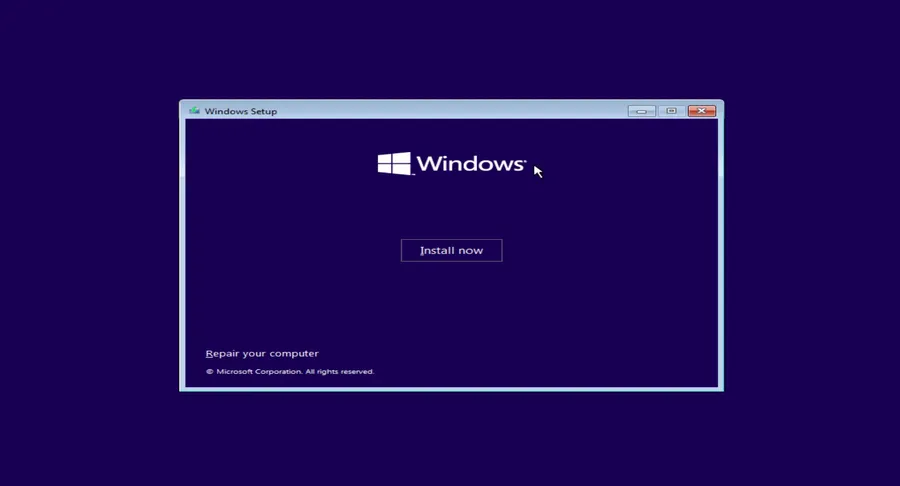
This section provides a detailed, step-by-step guide for installing CircuitMaker on a macOS system using a virtual machine. This approach involves setting up a Windows environment within your macOS using virtualization software, allowing you to run CircuitMaker as if it were installed on a native Windows system.
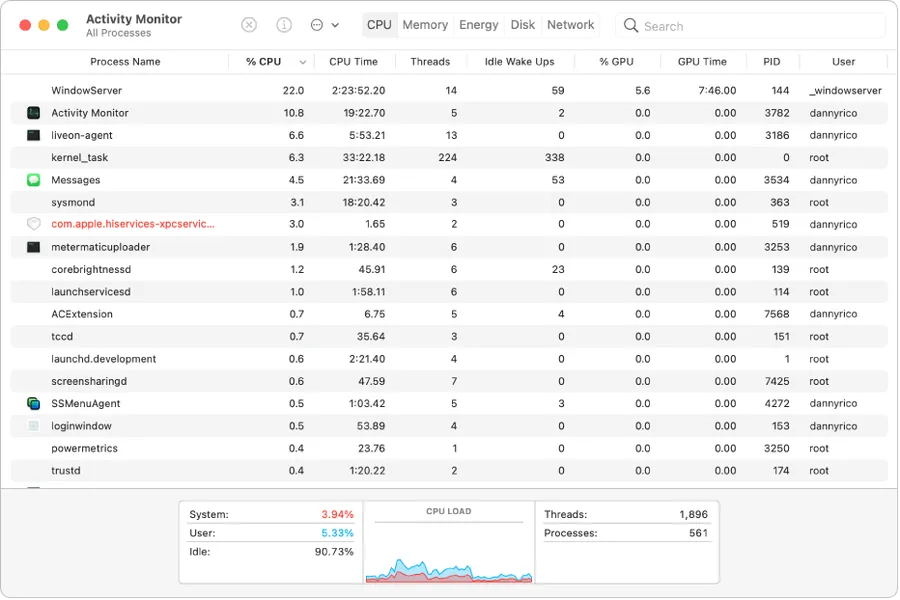
Running CircuitMaker on macOS, whether through virtualization or Wine, introduces performance overhead compared to running it on its native Windows environment. Understanding the factors impacting this performance is crucial for a smooth design experience. Resource allocation, hardware specifications, and optimized configurations play significant roles in achieving acceptable performance levels.
Selecting the appropriate method to run CircuitMaker on macOS requires a careful evaluation of various factors. This section provides a comparative analysis of virtualization, Wine, and native macOS alternatives, highlighting their respective strengths, weaknesses, costs, and learning curves.
| Method | Pros | Cons | Cost | Learning Curve |
|---|---|---|---|---|
| Virtualization (Parallels, VMware) | High compatibility, good performance, supports full Windows environment. | Resource-intensive, requires a Windows license, can be expensive. | $$ (Software License + Windows License) | Moderate (Basic VM setup knowledge required) |
| Wine/Winetricks | Free, does not require a Windows license, low resource consumption compared to VMs. | Can be unstable, requires technical expertise, compatibility issues can arise. | Free | High (Requires command-line and technical troubleshooting) |
| macOS Alternatives (KiCad, Eagle, Fusion 360) | Native macOS support, stable, good performance, often feature-rich. | Requires learning new software, may not have all the same features as CircuitMaker, migration issues. | $ to $$$ (Varies depending on software) | Moderate to High (Software specific learning) |
While CircuitMaker is not natively available on macOS, the resourceful maker can certainly find ways to run the software or use equally powerful alternatives. Whether through virtualization, Wine, or switching to a macOS-supported PCB design software, this article provides all the information you need to continue your circuit design projects. The limitations of platform should not limit the power of your creativity and this guide will help you explore the options for using CircuitMaker for Mac effectively. The best path is the one that supports your goals and enables you to bring your projects to life.