In today's fast-paced business environment, efficiency and resource optimization are paramount. Just as innovative PCB solutions from Zero One Solution Limited accelerate product development, a well-implemented shared printer solution can dramatically enhance workplace productivity and streamline operations. Are you tired of multiple printers for individual users or the complexities of managing numerous printing devices? This article delves into how a robust shared printer solution can transform your printing infrastructure, offering a comprehensive guide to seamless integration and management.
Understanding the Need for a Shared Printer Solution
In today's dynamic work environments, efficient resource utilization is paramount for productivity and cost-effectiveness. The traditional model of providing each employee or small team with a dedicated printer often leads to significant operational inefficiencies and inflated expenses. Understanding the underlying reasons why a shared printer solution is not just convenient, but essential, reveals core pain points that modern businesses must address to streamline operations and foster collaboration.
The proliferation of individual or small workgroup printers results in device redundancy. Many printers sit idle for significant periods, yet still require space, power, and periodic maintenance. This underutilization represents a direct waste of capital investment and ongoing operational expenditure. Furthermore, managing a decentralized fleet of printing devices complicates IT support, driver management, and supply procurement, creating administrative overheads that detract from core business activities.
Beyond the initial hardware cost and management complexity, operating numerous separate printers dramatically increases consumption of consumables like ink, toner, and paper, often purchased in smaller, less cost-effective quantities. Energy consumption is also higher collectively compared to a few centralized, energy-efficient shared devices. These factors contribute to substantial, often hidden, operational costs that accumulate over time. Recognizing these challenges underscores the compelling need to transition towards a consolidated, shared printing infrastructure.
Device Redundancy Multiple underutilized printers leading to wasted capital and space.
High Operational Costs Increased spending on consumables, maintenance, and energy across many devices.
Management Complexity Difficulties in managing drivers, updates, and support for a scattered printer fleet.
Key Benefits of Implementing a Shared Printer Solution
Implementing a shared printer solution transcends mere convenience; it's a strategic move offering tangible benefits that directly impact operational efficiency, cost reduction, and resource utilization within any organization. By consolidating printing resources, businesses can unlock significant advantages across multiple facets of their workflow. This approach addresses the inefficiencies inherent in individual printer setups and paves the way for streamlined management and a reduced environmental footprint. Let's delve into the key advantages that make a shared printer solution an indispensable asset in modern work environments.
Significant Cost Savings Reducing the number of individual printers directly translates to lower capital expenditures on hardware. Furthermore, shared printers typically utilize higher-capacity consumables (toner, ink) at a lower cost per page compared to desktop models. Centralized purchasing of supplies and maintenance contracts also leads to bulk discounts and simplified budget management. Studies show that organizations can achieve significant savings, often exceeding 20%, on printing-related expenses by adopting a shared model.
Enhanced Efficiency and Productivity Employees spend less time troubleshooting individual printers or searching for available devices. Centralized, high-speed shared printers can handle larger print jobs more quickly, reducing wait times and improving workflow. Features like job queuing and release options allow users to print securely and at their convenience, minimizing disruptions.
Centralized Management and Control A shared printer solution simplifies IT management. Administrators can centrally monitor printer usage, track consumables, manage user access permissions, and deploy driver updates from a single point. This significantly reduces the time and effort required for printer maintenance and support, allowing IT staff to focus on more strategic tasks.
Improved Resource Utilization Shared printers ensure that expensive printing assets are utilized to their full potential. Instead of multiple underutilized individual printers, a few high-capacity shared devices handle the workload efficiently. This optimizes the return on investment for printing equipment.
Environmental Sustainability Consolidating printers reduces energy consumption and waste. Fewer devices mean less power usage, and shared printers often have features like duplex printing and toner-saving modes as standard. This contributes to a smaller carbon footprint and supports corporate sustainability initiatives.
Enhanced Security Features Many shared printer solutions offer advanced security features such as user authentication, secure print release, and encryption. This helps protect sensitive information from unauthorized access and ensures compliance with data privacy regulations.
Types of Shared Printer Solutions: A Comprehensive Overview
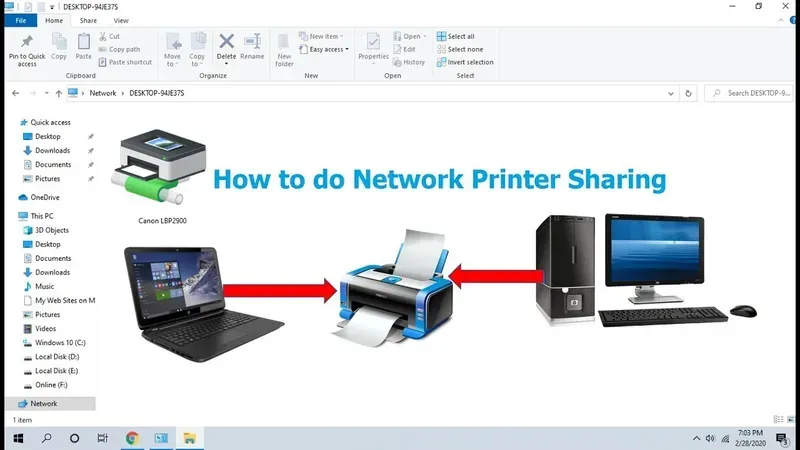
Network Printer Setup
Selecting the appropriate shared printer solution is crucial for optimizing office productivity and cost-efficiency. The diverse landscape of sharing methods caters to different organizational sizes, IT infrastructures, and security needs. Understanding the nuances of each type—from simple peer-to-peer sharing to sophisticated cloud-based systems—enables businesses to make informed decisions that align with their operational goals and scale effectively.
Sharing Method
Description
Best Suited For
Advantages
Disadvantages
Peer-to-Peer Sharing
Connecting a printer directly to one computer, which then shares it with others on the same network.
Small offices or home networks with a few users.
Simple setup, low initial cost.
Host computer must be on, performance depends on host, limited scalability, security concerns.
Network Printer
Printers directly connected to the network via Ethernet or Wi-Fi, accessible by multiple users.
Small to medium-sized businesses with a moderate number of users.
Centralized access, better performance than peer-to-peer, independent of individual computers.
Requires network infrastructure, initial cost can be higher.
Print Server
A dedicated server or device managing print jobs and queues for multiple network printers.
Medium to large enterprises with significant printing volume and complex needs.
Higher initial cost, requires IT administration expertise.
Cloud-Based Solution
Printing services managed and accessed over the internet, often eliminating the need for local print servers.
Organizations with multiple locations, remote workers, or those adopting cloud infrastructure.
High scalability, accessibility from anywhere, reduced hardware costs, simplified management.
Dependency on internet connection, potential data security and privacy concerns, subscription costs.
Each shared printer solution offers a distinct balance of cost, complexity, performance, and scalability. Peer-to-peer sharing is the most straightforward for minimal setups, while network printers provide a step up in accessibility and performance for slightly larger teams. Print servers become essential for managing high volumes and complex workflows in larger organizations, offering centralized control and enhanced security. Cloud-based solutions represent the cutting edge, providing flexibility and accessibility ideal for distributed workforces and future-proofing IT infrastructure, albeit with reliance on internet connectivity and potential data handling considerations. Careful evaluation of these options against specific business requirements is paramount for successful implementation.
Steps to Successfully Implement a Shared Printer Solution
Printer Driver Installation
Implementing a shared printer solution requires careful planning and execution to ensure seamless integration and optimal performance within your network. A structured approach, covering hardware assessment, network readiness, configuration, and user onboarding, is crucial for a successful deployment that minimizes disruption and maximizes the benefits of shared printing. This section provides a practical guide to navigate these essential steps.
Assess Your Needs and Infrastructure Before selecting and implementing a shared printer solution, evaluate your organization's specific printing volume, types of documents printed, required printer features (color, duplexing, scanning), and the existing network infrastructure. Consider the number of users who will access the shared printer and the physical layout of your office.
Select the Right Printer and Sharing Method Choose a printer that is robust enough to handle the expected workload and supports network connectivity. Based on your needs, select the appropriate sharing method, such as a dedicated network printer, utilizing a print server, or implementing cloud-based printing services. Network printers are generally recommended for reliability and manageability in most office environments.
Ensure Network Readiness and Connectivity Verify that your network is capable of supporting the increased traffic from shared printing. Ensure stable wired or wireless connectivity to the printer. Assign a static IP address to the network printer to facilitate consistent access and easier management. Confirm firewall settings allow necessary communication for printing.
Install and Configure the Printer Physically connect the printer to the network. Install the latest printer drivers on the computer that will host the shared printer (if using peer-to-peer or a print server) or directly on the network if it's a network printer. Configure the printer's network settings, including the IP address, subnet mask, and gateway. Access the printer's web interface for advanced configuration options.
Set Up Sharing and Permissions On the host computer or print server, configure the printer for sharing. Assign a clear and easily identifiable shared name. Crucially, set appropriate user permissions to control who can print and manage print jobs. This is vital for security and preventing unauthorized access.
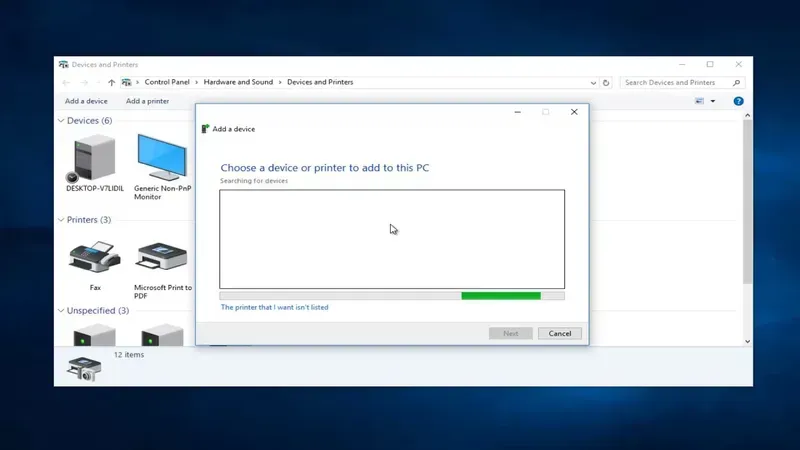
Install Drivers and Connect Clients On each client computer that needs to access the shared printer, install the compatible printer drivers. Add the shared printer through the operating system's printer settings, browsing the network for the shared printer name. Ensure the correct drivers are installed for the specific operating system version.
Test and Verify Functionality After setup, thoroughly test the shared printer from multiple client computers to ensure all users can successfully print. Verify that different document types and print settings work correctly. Check for any error messages or connectivity issues during testing.
Educate Users and Provide Support Inform users about the new shared printer, its location, and how to connect to it. Provide clear instructions on how to install the drivers and select the printer. Establish a clear support channel for users encountering issues with the shared printer.
Optimizing Performance and Security in Shared Printing Environments
Network Printer Management
Optimizing the performance and security of your shared printer environment is paramount for maintaining efficiency, protecting sensitive data, and ensuring a smooth workflow. Beyond basic setup, proactive measures in network printer management, print queue optimization, user access control, and robust data security protocols are essential. Neglecting these aspects can lead to frustrating delays, wasted resources, and potential data breaches. Implementing best practices ensures that your shared printing infrastructure is not only operational but also reliable, secure, and scalable.
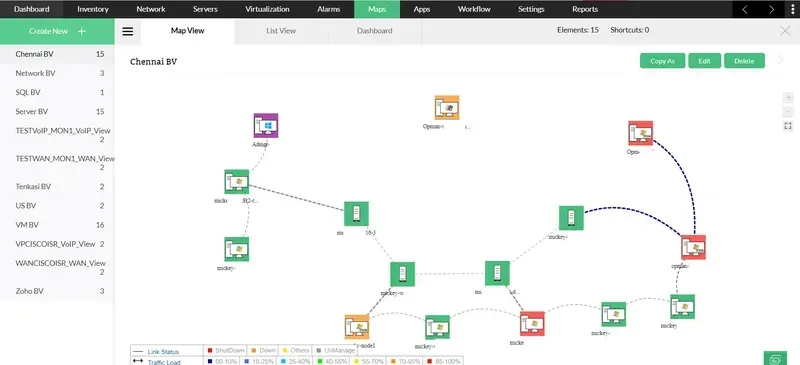
Best Practices for Network Printer Management Effective network printer management involves centralized administration tools, regular firmware updates for all printers, and monitoring printer status (toner levels, paper jams, connectivity). Implementing a print management software can significantly simplify these tasks, offering real-time insights and automated alerts.
Print Queue Optimization Optimizing the print queue prevents bottlenecks and ensures print jobs are processed efficiently. This includes prioritizing urgent jobs, managing job sizes, and periodically clearing stalled or erroneous print jobs. Configuring print servers with sufficient processing power and memory is also crucial.
User Access Control Implementing granular user access controls restricts who can print to specific devices or perform certain functions (like changing settings). This can be achieved through group policies, access control lists (ACLs) on print servers, and user authentication methods, enhancing both security and cost control.
Data Security Measures for Shared Printing Securing print data is critical. This involves encrypting print jobs in transit (e.g., using IPPS), securing the print server with strong passwords and firewalls, and implementing secure release printing where users must authenticate at the printer to retrieve their documents. Regular security audits and vulnerability assessments are also recommended.
By diligently applying these best practices, businesses can transform their shared printing environment from a potential liability into a secure and high-performing asset, contributing significantly to overall operational efficiency and data protection.
Troubleshooting Common Shared Printer Issues
Printer Connectivity Troubleshooting
Shared printer solutions, while highly beneficial, can sometimes present connectivity issues, driver conflicts, and frustrating printing errors. Efficient troubleshooting is key to minimizing downtime and maintaining productivity within your shared printing environment. Identifying the root cause of these common problems is the first step towards a swift resolution.
Why can't my computer see the shared printer? This is often a network connectivity issue. Verify that both the computer and the printer are connected to the same network. Check network cables, Wi-Fi connections, and ensure the printer is powered on. Firewall settings on either the computer or the printer server might also be blocking the connection; temporarily disabling firewalls for testing can help isolate the problem, but remember to re-enable them afterward with appropriate rules.
How do I fix driver conflicts with a shared printer? Driver conflicts occur when the printer driver installed on the client computer is incompatible with the shared printer or other drivers. Uninstalling and then reinstalling the latest, correct driver for the specific printer model and operating system version from the manufacturer's website is the most effective solution. Ensure you remove all remnants of previous driver installations before installing the new one.
What should I do if print jobs are stuck in the queue? Print jobs can get stuck for various reasons, including network issues, printer errors, or corrupted print spooler services. Try canceling all pending print jobs in the print queue on the client computer and the server. If this doesn't work, restarting the print spooler service on the server (and potentially the client) is a common fix. Sometimes, a full restart of both the computer and the printer can resolve the issue.
Why am I getting a 'printer offline' error when it's online? This error often indicates a communication breakdown between the computer and the printer, even if the printer appears to be on. Check network connectivity as a primary step. The print spooler service might be unresponsive, requiring a restart. Ensure the correct printer is set as the default printer on the client computer. Outdated or corrupted printer drivers can also cause this issue.
How can I troubleshoot slow shared printer performance? Slow printing can stem from network congestion, outdated printer firmware, or complex print jobs. Optimize your network for printing traffic. Ensure the printer's firmware is up to date. For large or complex documents, try printing as an image or reducing the print resolution. Check the printer's memory; insufficient memory can slow down processing of large jobs. Consider upgrading the printer's memory if consistently printing complex documents.
The Future of Shared Printing: Trends and Innovations
The landscape of shared printing solutions is continuously evolving, driven by technological advancements and the increasing demand for more efficient, secure, and intelligent printing environments. Looking ahead, several key trends and innovations are set to reshape how we think about and utilize shared printers in both office and home settings. These developments promise enhanced connectivity, proactive management, and robust security measures, ultimately improving the user experience and operational efficiency of shared printing solutions.
IoT Integration and Enhanced Connectivity The integration of shared printers with the Internet of Things (IoT) is enabling smarter and more connected printing experiences. This allows for real-time monitoring of printer status, automatic supply reordering, and remote management from various devices and platforms. Future IoT-enabled shared printers will offer even greater seamless connectivity and data exchange, allowing for predictive maintenance and optimized resource allocation within a network.
AI-Powered Print Management and Automation Artificial Intelligence (AI) is poised to revolutionize shared print management. AI algorithms can analyze print patterns, predict potential issues before they occur, and automate routine tasks such as load balancing and user access control. This proactive approach minimizes downtime, optimizes printer usage, and reduces the burden on IT administrators. AI can also be used for content analysis to improve print quality and optimize ink/toner usage.
Advanced Security Features and Data Protection With increasing concerns about data security, the future of shared printing will heavily focus on advanced security features. This includes enhanced user authentication methods (like biometric or multi-factor authentication), secure print release options to prevent unauthorized access to sensitive documents, and robust encryption protocols for data transmitted to and from the printer. Zero Trust network principles will likely become more prevalent in shared printing environments to ensure that only authorized users and devices can access printing resources.
Cloud-Native Shared Printing and Scalability Cloud-native shared printing solutions are becoming increasingly popular due to their scalability, flexibility, and ease of management. This trend will continue, with more sophisticated cloud platforms offering advanced features like centralized policy management, detailed usage analytics, and integration with other cloud-based productivity tools. This shift allows organizations to easily scale their printing infrastructure up or down based on their needs and provides greater accessibility for remote and mobile workers.
Focus on Sustainability and Environmental Impact Environmental sustainability is a growing concern, and the future of shared printing will reflect this. Innovations will focus on energy-efficient printers, reduced paper waste through smarter printing defaults and duplex printing as the standard, and improved recycling programs for consumables. AI and analytics will play a role in identifying opportunities to reduce environmental impact by optimizing print workflows and minimizing unnecessary printing.
Personalization and User Experience Enhancement Future shared printing solutions will offer more personalized and intuitive user experiences. This could involve personalized print settings based on user preferences, mobile-friendly interfaces for easy printing from smartphones and tablets, and voice command integration for hands-free printing. The goal is to make shared printing as effortless and user-friendly as possible.
Frequently Asked Questions About Shared Printer Solutions
Navigating the complexities of shared printer solutions can sometimes lead to questions regarding setup, compatibility, and troubleshooting. This section addresses frequently asked questions to provide clarity and quick insights for users and administrators alike, ensuring a smoother shared printing experience.
What are the basic requirements to set up a shared printer solution? The fundamental requirements include a compatible printer (most modern network-ready printers are suitable), a network connection (wired or wireless), and a computer or server to host the printer and manage shared access. Client devices will also need the appropriate drivers installed.
Can I share any type of printer? While technically possible to share most printers, those designed for network connectivity (network printers) offer the most robust and reliable shared printer solution. USB printers can be shared via a host computer, but this method is less scalable and can be prone to issues if the host computer is turned off.
How do I ensure security when sharing a printer? Security for shared printers involves several layers. Implement strong user authentication (passwords or network credentials), restrict access to specific users or groups, utilize secure network protocols, and regularly update printer firmware to patch vulnerabilities. Consider pull printing solutions for enhanced document confidentiality.
What is the difference between a shared printer and a network printer? A shared printer is a printer connected to a computer and then 'shared' over a network, relying on the host computer. A network printer connects directly to the network via Ethernet or Wi-Fi and operates independently of a specific computer, offering better performance and scalability for shared printing.
How do I troubleshoot a shared printer that isn't printing? Troubleshooting involves checking several potential points: ensure the printer is powered on and connected to the network, verify the host computer is accessible (if sharing via USB), check printer queues for stalled jobs, restart the printer and the host computer, and confirm that the correct printer drivers are installed and updated on client devices.
Are there any compatibility issues with different operating systems? Compatibility can sometimes be an issue, especially when mixing different operating systems (e.g., Windows, macOS, Linux). Ensuring you have the correct and most recent drivers for each operating system is crucial. Some print server software can help manage cross-platform compatibility.
What are the benefits of using a print server for shared printing? A print server centralizes print job management, improves queuing, provides better control over user access and quotas, simplifies driver deployment, and enhances overall print network efficiency and security, especially in larger or more complex environments.
A well-architected Shared Printer Solution is more than just convenience; it's a strategic investment in operational efficiency, cost reduction, and enhanced collaboration. By centralizing management and optimizing resource utilization, businesses can achieve significant productivity gains. At Zero One Solution Limited, our commitment to innovation and efficiency extends beyond PCB solutions into every facet of modern business infrastructure. Just as we empower clients with rapid prototyping and one-stop PCB services, we advocate for smart, integrated solutions that drive success. Embrace the power of shared resources and elevate your printing infrastructure today. Contact Zero One Solution Limited to discuss how our expertise can support your broader technology needs and drive your business forward.