The world of PCB design is constantly evolving, and while CircuitMaker is a powerful tool, it's not natively available for Linux. However, don't let that stop you. This article explores various methods to get CircuitMaker working on Linux, along with suitable alternatives, offering a path for Linux users in the world of PCB design. Understanding the intersection of open-source ecosystems like Linux and specialized software like CircuitMaker allows us to solve complex challenges with practical solutions.
CircuitMaker, a powerful PCB design software, is primarily developed for the Windows operating system, creating a significant hurdle for engineers and designers who prefer the flexibility and robustness of Linux. This lack of native Linux support necessitates the exploration of alternative solutions and workarounds to effectively utilize CircuitMaker within a Linux environment. This section will lay the foundation for understanding these challenges and briefly introduce the solutions that will be covered in detail later.
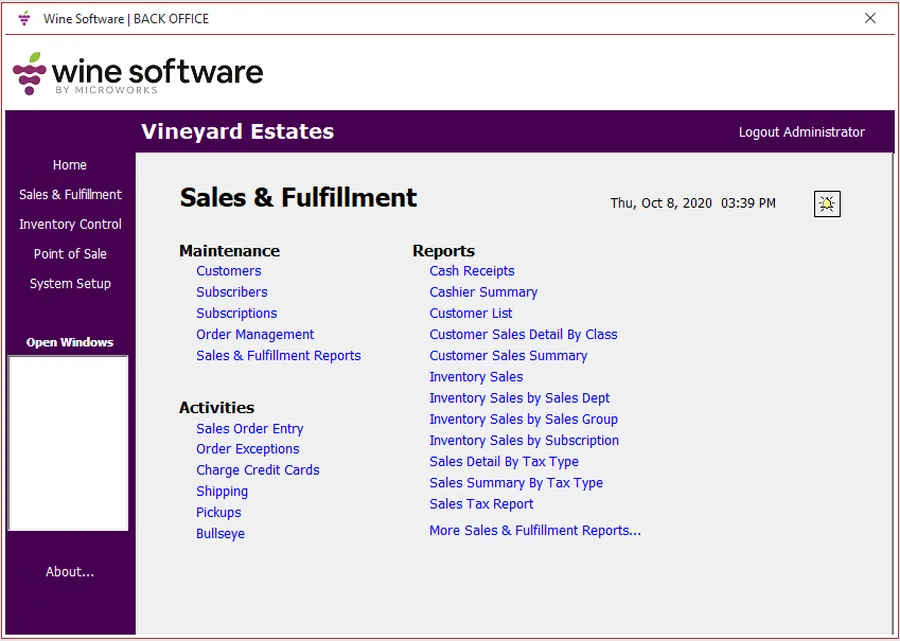
Wine acts as a compatibility layer, enabling Windows applications like CircuitMaker to function on Linux operating systems. This method leverages Wine's ability to translate Windows system calls into equivalent Linux calls, thus bridging the gap between the two platforms. While not a perfect solution, it offers a viable path for Linux users who need to utilize CircuitMaker.
The process involves several steps: installing Wine, configuring it to simulate a Windows environment suitable for CircuitMaker, and then proceeding with the standard CircuitMaker installation. Users should be aware of potential compatibility issues, which may include display glitches, performance degradation, or occasional crashes. Addressing these problems usually involves tweaking Wine settings or installing specific libraries. This approach, while practical, may not fully replicate the smooth performance experienced on a native Windows installation and requires some level of technical expertise.
Running CircuitMaker on Linux via Wine involves several key steps, including installing Wine, configuring it to support CircuitMaker's requirements, and addressing potential compatibility issues. This section provides a detailed walkthrough to ensure a smooth installation process.
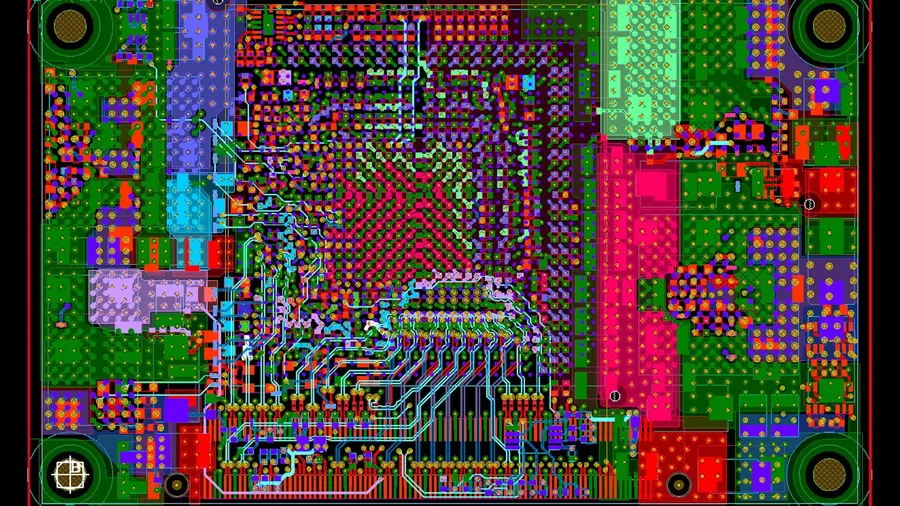
Cloud-based PCB design tools provide a compelling alternative to traditional desktop software, particularly for users seeking cross-platform compatibility. These platforms, accessible through web browsers, eliminate the operating system barrier encountered when running Windows-specific applications like CircuitMaker on Linux. By leveraging the power of the cloud, these tools offer design capabilities without the need for local installation or compatibility workarounds.
A prominent example of such a cloud-based solution is Upverter, which was acquired by Altium. While not a direct replacement for CircuitMaker in terms of identical functionality, Upverter offers a comprehensive suite of PCB design features, accessible through any web browser, making it platform agnostic.
The cloud-based approach presents a paradigm shift, enabling designers to collaborate in real-time and access their projects from anywhere with an internet connection. This methodology fosters flexibility and efficiency, eliminating the constraints associated with specific operating systems.
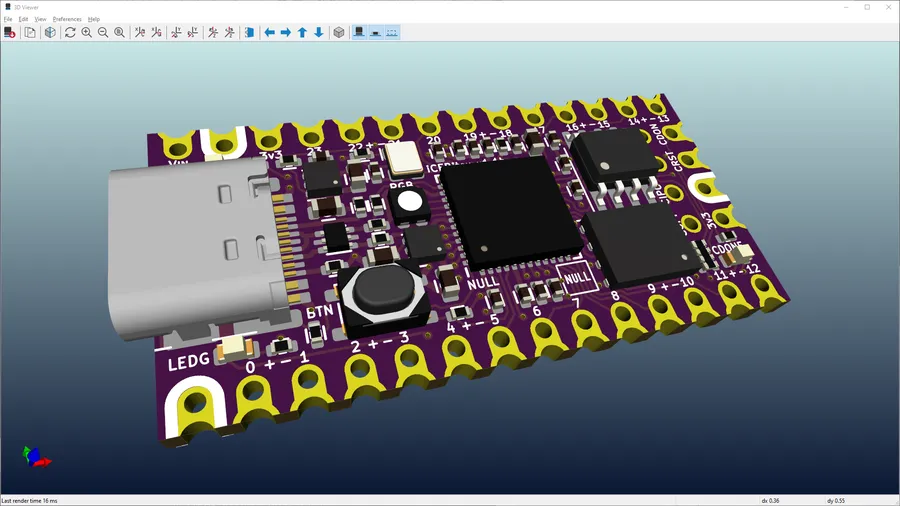
For users committed to a Linux-native workflow, several powerful PCB design software options exist, eliminating the need for compatibility layers like Wine. These tools offer robust features and integrate seamlessly into the Linux environment. This section explores KiCad, Eagle, and Fritzing, analyzing their strengths, weaknesses, and suitability for various design needs.
| Feature | KiCad | Eagle | Fritzing |
|---|---|---|---|
| License | Open Source (GPL) | Proprietary (Autodesk) | Open Source (Creative Commons) |
| Cost | Free | Subscription based | Free |
| Complexity | Professional-grade, feature-rich | Professional-grade, industry standard | Beginner-friendly, educational tool |
| Ease of Use | Moderate Learning Curve | Moderate Learning Curve | Very User-Friendly |
| Community Support | Large and active | Large and active | Small but active |
| Features | Full suite of design tools, 3D viewer, advanced routing options | Comprehensive feature set, wide library support | Focus on schematic capture, breadboard layout, and PCB prototyping |
| Target User | Professionals and hobbyists | Professionals and larger teams | Beginners, educators, hobbyists |
| Integration | Good integration with other open-source tools | Integration with Autodesk ecosystem | Limited integration capabilities |
Choosing the Right Tool: KiCad is a fully featured, open-source option, suitable for complex professional designs. Eagle, while proprietary, offers similar professional-grade capabilities and strong industry adoption, especially within the Autodesk ecosystem. Fritzing is best for beginners and educational purposes due to its intuitive interface.
Running CircuitMaker through Wine on Linux, while functional, often introduces performance overhead and potential instability. This section addresses common performance bottlenecks, provides optimization strategies, and offers troubleshooting steps to ensure a smoother PCB design workflow. It's crucial to understand that Wine is a compatibility layer and not a native solution, therefore performance won't be identical to a native Windows environment.
This section addresses common queries regarding the use of CircuitMaker within a Linux environment, providing concise and authoritative answers to assist users in overcoming compatibility challenges and optimizing their PCB design workflow.
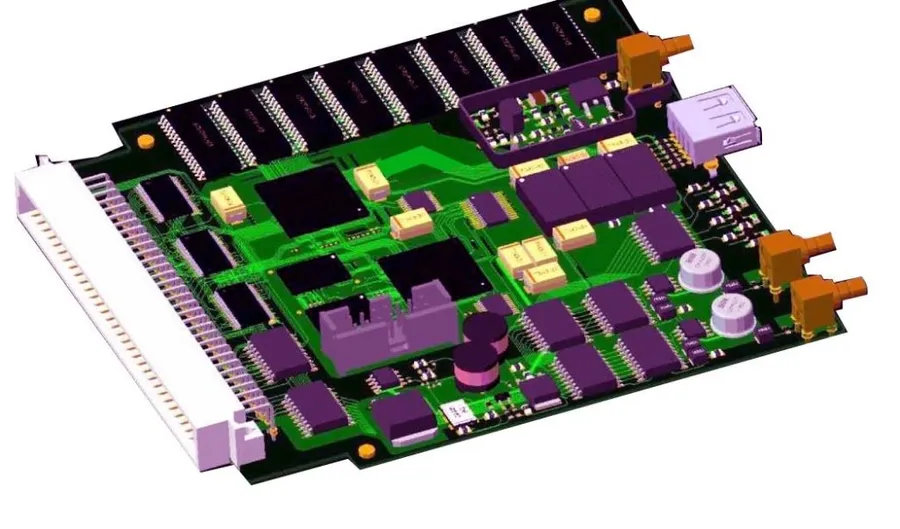
Choosing the right PCB design software for Linux involves weighing various factors such as performance, compatibility, cost, and feature sets. This section provides a comparative analysis to aid in your decision-making process.
| Feature | CircuitMaker (Wine) | Cloud-Based Tools (e.g., Upverter) | Native Linux Software (e.g., KiCad) |
|---|---|---|---|
| Performance | Potentially lower due to emulation; dependent on Wine configuration and system resources. May experience graphical glitches or lag. | Generally good, reliant on internet connection speed. Performance is consistent across devices. | Typically excellent; optimized for direct hardware access. May vary depending on the complexity of the project and system resource. |
| Compatibility | Relies on Wine compatibility layer; may encounter issues with specific hardware or features. Requires manual configuration and troubleshooting. | Excellent; accessible via web browser across operating systems. Browser compatibility issues may arise but are generally minor. | Excellent; designed to run natively on Linux, optimized for the environment. |
| Cost | CircuitMaker is free; cost associated with running Windows software and any associated licensing. Potentially higher if a user is also using licensed windows software in a VM. | Many offer free tiers with limitations; subscriptions available for advanced features. Costs can be subscription-based, which requires ongoing payment. | Primarily free and open-source with no additional costs; may require community support, learning curve, and time to become an expert. |
| Features | Comprehensive set of features for PCB design and collaboration with Altium 365, however may not be as reliable as native Windows experience. | Good range of PCB design tools, real-time collaboration capabilities, feature set may vary among providers. | Robust features for professional-grade PCB design, with a mature community support network. |
| Ease of Use | Moderate, requires technical knowledge of Wine and Linux, potential for troubleshooting. | Generally easy; web-based user interface accessible to a wide range of users. | Moderate learning curve; requires learning specific software UI/UX, has a more advanced feature set and can be overwhelming at the beginning. |
| Community Support | Limited Linux-specific support; requires searching for solutions and community help. | Varies by platform, and may rely on the company's documentation, may have an active community forum on their specific website. | Large and active community for KiCad, which means there are a lot of open source forums and support groups. |
While CircuitMaker doesn't offer a native Linux version, workarounds such as using Wine or exploring cloud based and native Linux alternatives provide feasible solutions for Linux users. Understanding these methods empowers you to continue your PCB design journey in your preferred operating system. The future of design tools will likely see increased cross-platform compatibility, but until then, these strategies ensure no one is left behind.